

Due to Ubuntu permission settings that I do not understand, I had to prefix all of the following commands with "sudo". This allows avrdude to run with administrator rights.
The first step is to test if avrdude is able to connect to the µC. Plug in the USB cable and type "avrdude" into the command line to see a list of options. Next, determine the type of your programmer. Typing "avrdude -c asdf" will display a list of programmers. The Sainsmart programmer is a "usbasp" programmer. Next, specify the type of microcontroller you are using. Typing "avrdude -p asdf" will display the list of microcontrollers avrdude supports.
Typing "avrdude -c usbasp -p m8" will display the following if avrdude is able to connect to the µC. If you get an error, check the connections between the programmer and the µC. Otherwise we are ready to load the program.

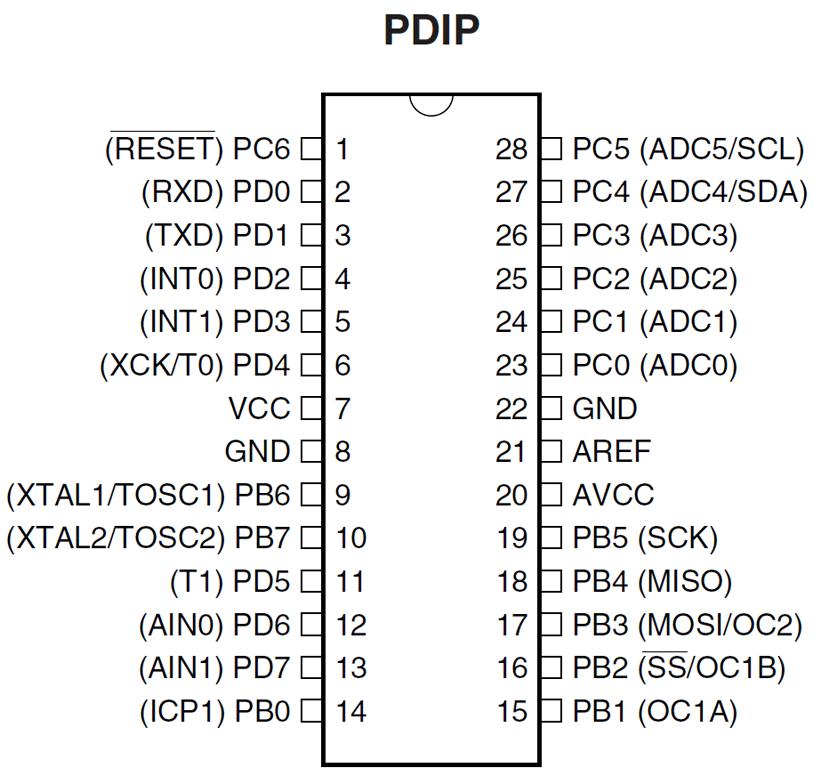
For now, the only difference between beginner C programs and µC programs are the inputs and outputs. You're probably used to using printf or cout to display output and scanf or cin to take input. Here, our inputs and outputs are high/low states of pins being watched or set. For example, the line of code to turn on an LED connected to PB0 is "PINB = 0x01". Note that this will set B 1-5 to low. AVR C supports logic expressions. To toggle the state of PB0, type "PINB ^= 0x01" (^= is the XOR function).
We're now ready to load the code onto the µC. Use the following command:
sudo avrdude -c USBasp -p atmega8 -U flash:w:hello.hex:i
You should see the following in the command window:

The µC will begin executing the code immediately!
I'm an Electrical and Computer Engineering student at University of Illinois - Chicago. I've joined the Engineering Design Team, where we design robots to compete against teams from other schools. This video shows one of our robots at the Jerry Sanders Design Competition at UIUC in January 2013. EDT fields a number of robots for different competition, some robots controlled via RC while others act autonomously.
As a new member of the team, I was given the option of choosing from a number of side projects that will support EDT during design and competition. Some of the projects were to design a lift for running tests on one of the autonomous robots, a trailer which provided shelter and power for field tests, and custom built boxes for a new set of breadboards the team recently purchased. I decided to work on a fourth project, a DC motor testing station.
EDT uses a number of different brushless DC motors for its robots. While these motors are specified to output certain ranges of RPM and torque at different levels of current and voltage, the team needs to know exactly how each motor will perform so there are no surprises in the middle of a competition. The station will provide a mount and enclosure for the motor being tested, automatically run the test, and then output the data to a USB stick or possibly to a connected PC running custom software to interpret the data.
I chose this project because it will require a large range of engineering knowledge, from electrical and mechanical design to hardware and software programming. My previous design experience is limited to class work and arcade controller design, so this will be a great opportunity to expand my skill set in a short period of time.
This blog will detail my progress. Since my background so far is in electrical engineering, I've begun at the input side of the motor, measuring the voltage across and current through the motor. I'm doing this with an Atmega8 Microcontroller and the majority of my initial posts will be on this subject.